> ## Documentation Index
> Fetch the complete documentation index at: https://docs.ruoli.dev/llms.txt
> Use this file to discover all available pages before exploring further.
# CC Switch
> Configure all AI tools to connect to ruoli with one click
CC Switch is a **setup helper** — it's not a model itself, but a tool that configures ruoli into command-line tools like Claude Code and Codex with one click, and lets you switch quickly between providers. It's the easiest option if you'd rather not edit config files by hand.
[CC Switch](https://ccswitch.lovable.app) provides a graphical interface — open it and go, no installation needed.
## Open CC Switch
Visit [ccswitch.lovable.app](https://ccswitch.lovable.app) to get started.
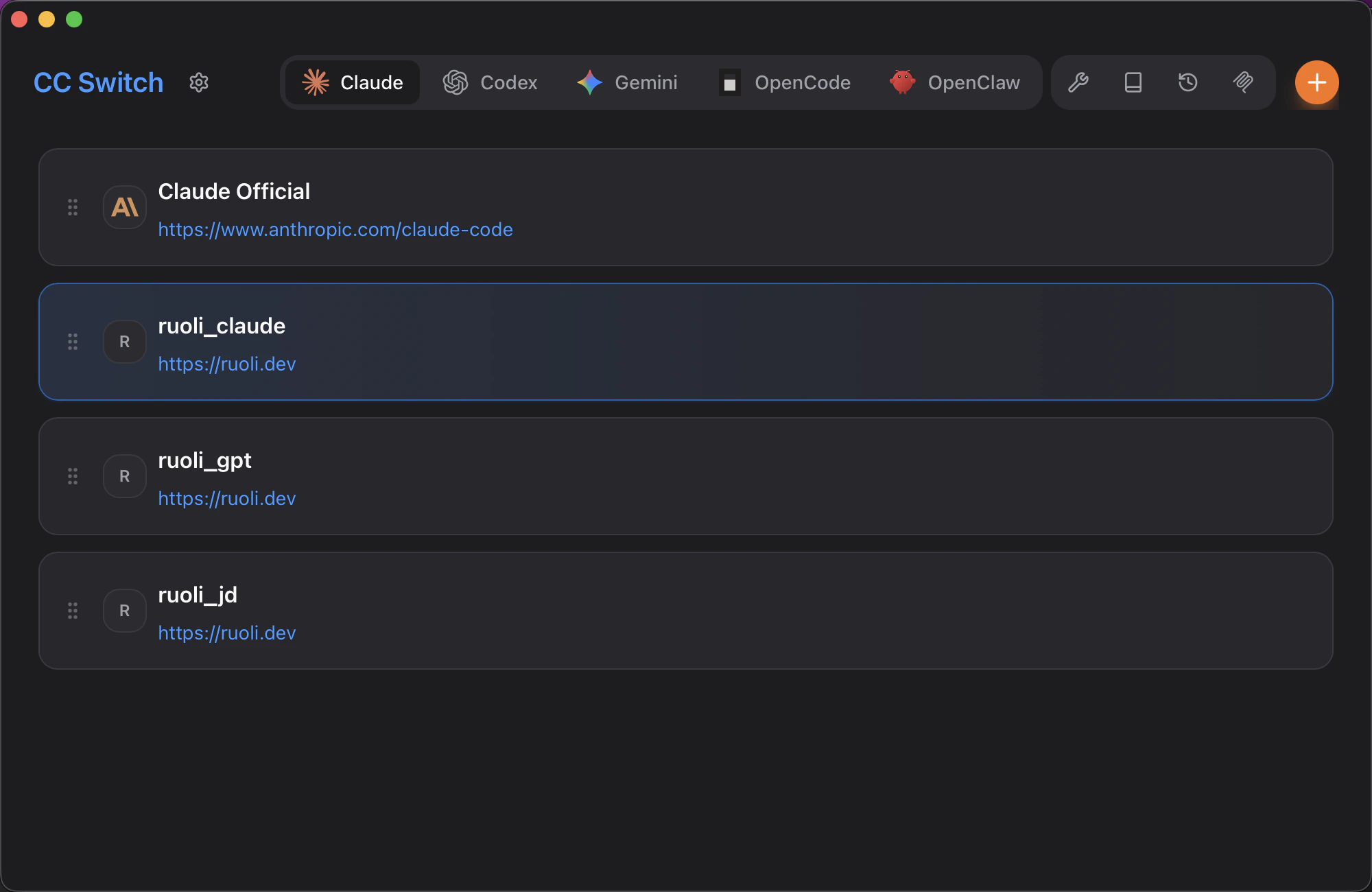
The top tab bar lets you switch between different tools:
 ## Add ruoli
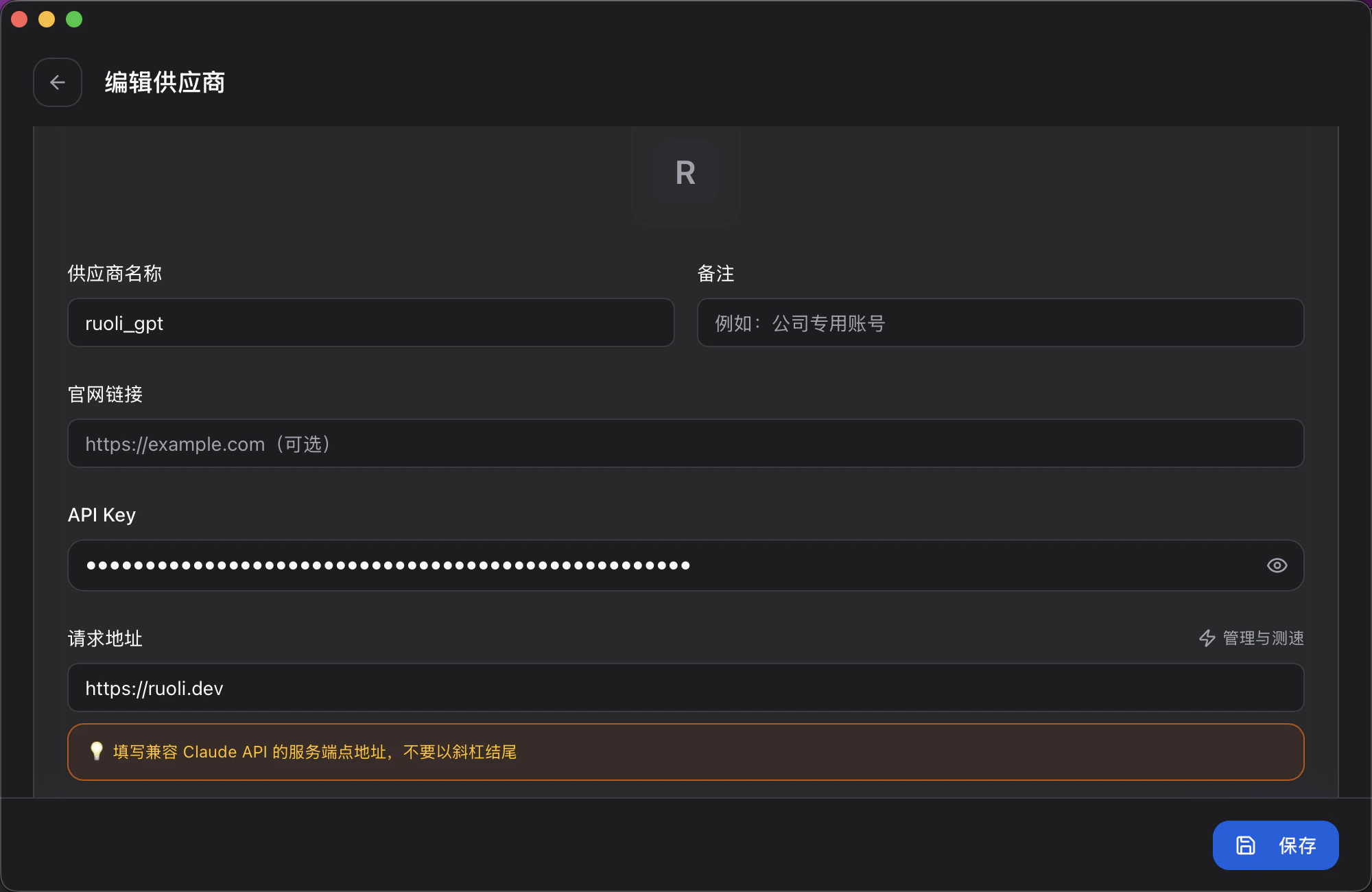
1. Click the **+** button in the top right to add a new configuration
2. Fill in the provider details:
## Add ruoli
1. Click the **+** button in the top right to add a new configuration
2. Fill in the provider details:
 | Field | Value |
| ------------- | ------------------------------------------------------------------------ |
| Provider Name | Custom, e.g. `ruoli_claude` |
| API Key | Your Key (get it from the Tokens page at [ruoli.dev](https://ruoli.dev)) |
| Request URL | `https://ruoli.dev` |
3. Click **Save**
## Configure Model Mapping
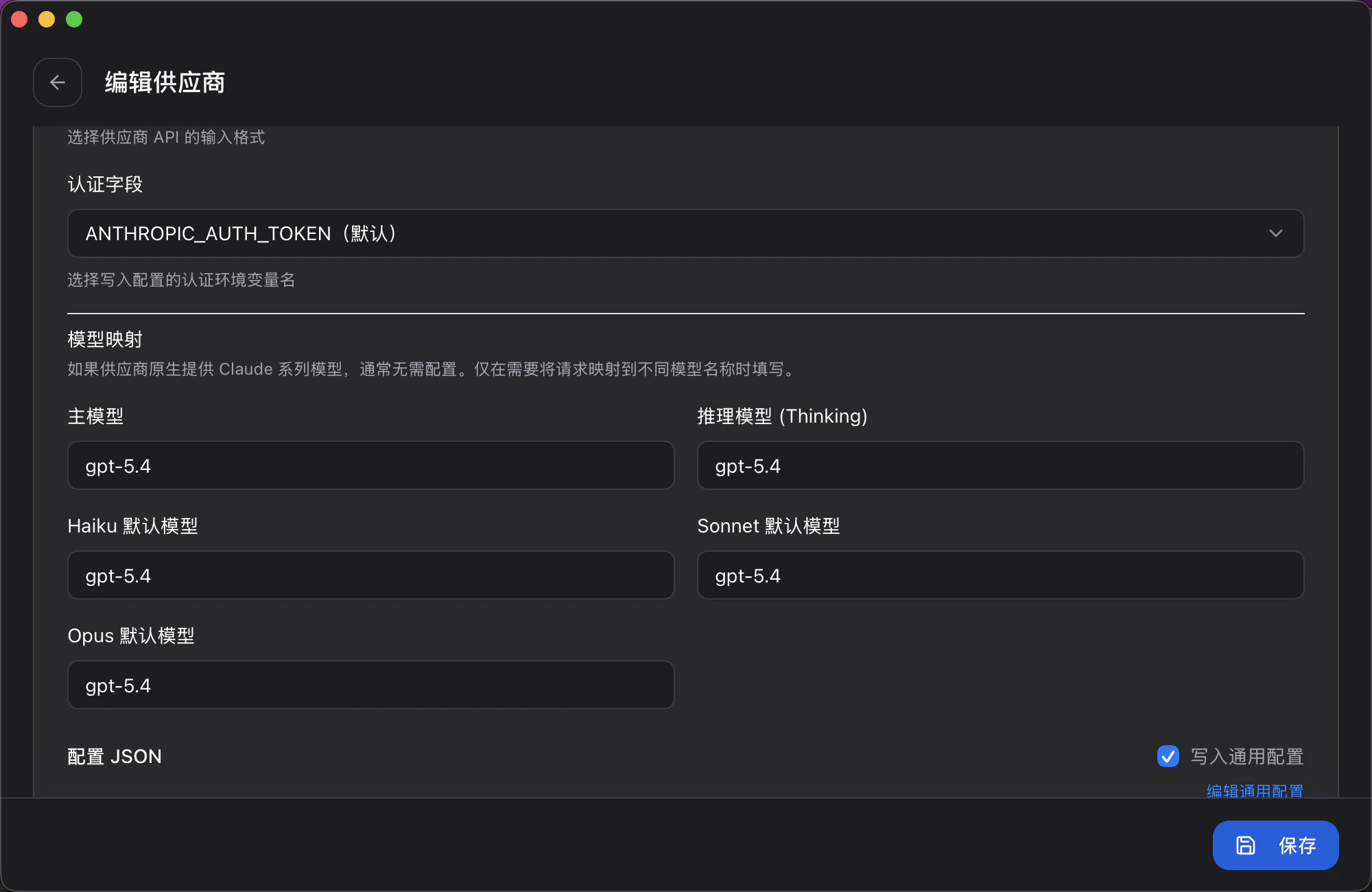
Scroll down to configure model mapping, which maps Claude Code's model aliases to the models you want to use:
| Field | Value |
| ------------- | ------------------------------------------------------------------------ |
| Provider Name | Custom, e.g. `ruoli_claude` |
| API Key | Your Key (get it from the Tokens page at [ruoli.dev](https://ruoli.dev)) |
| Request URL | `https://ruoli.dev` |
3. Click **Save**
## Configure Model Mapping
Scroll down to configure model mapping, which maps Claude Code's model aliases to the models you want to use:
 | Field | Description |
| -------------------------- | --------------------------------------- |
| Primary Model | Default model used by Claude Code |
| Reasoning Model (Thinking) | Model used for deep reasoning |
| Haiku Default Model | Model used when running `/model haiku` |
| Sonnet Default Model | Model used when running `/model sonnet` |
| Opus Default Model | Model used when running `/model opus` |
Check **Write to Global Config** to apply the configuration to all tools.
## Switch Providers
In the main interface, select the configuration you want to use to switch. Supports **automatic failover** — when one provider is unavailable, it automatically switches to the next one.
## Import from ruoli Dashboard
On the Tokens page at [ruoli.dev](https://ruoli.dev), click **Copy Connection Info** and paste it directly into CC Switch to complete the setup.
## Supported Tools
| Tool | Support |
| ----------- | --------- |
| Claude Code | Supported |
| Codex | Supported |
Cherry Studio is not configured through CC Switch. See the [Cherry Studio configuration page](/en/tools/cherry-studio) to configure it manually. For other compatible tools, see [General Access](/en/tools/general-access).
**Official Website**: [ccswitch.lovable.app](https://ccswitch.lovable.app) ·
**GitHub**: [github.com/farion1231/cc-switch](https://github.com/farion1231/cc-switch)
| Field | Description |
| -------------------------- | --------------------------------------- |
| Primary Model | Default model used by Claude Code |
| Reasoning Model (Thinking) | Model used for deep reasoning |
| Haiku Default Model | Model used when running `/model haiku` |
| Sonnet Default Model | Model used when running `/model sonnet` |
| Opus Default Model | Model used when running `/model opus` |
Check **Write to Global Config** to apply the configuration to all tools.
## Switch Providers
In the main interface, select the configuration you want to use to switch. Supports **automatic failover** — when one provider is unavailable, it automatically switches to the next one.
## Import from ruoli Dashboard
On the Tokens page at [ruoli.dev](https://ruoli.dev), click **Copy Connection Info** and paste it directly into CC Switch to complete the setup.
## Supported Tools
| Tool | Support |
| ----------- | --------- |
| Claude Code | Supported |
| Codex | Supported |
Cherry Studio is not configured through CC Switch. See the [Cherry Studio configuration page](/en/tools/cherry-studio) to configure it manually. For other compatible tools, see [General Access](/en/tools/general-access).
**Official Website**: [ccswitch.lovable.app](https://ccswitch.lovable.app) ·
**GitHub**: [github.com/farion1231/cc-switch](https://github.com/farion1231/cc-switch)